
-
Playable Content
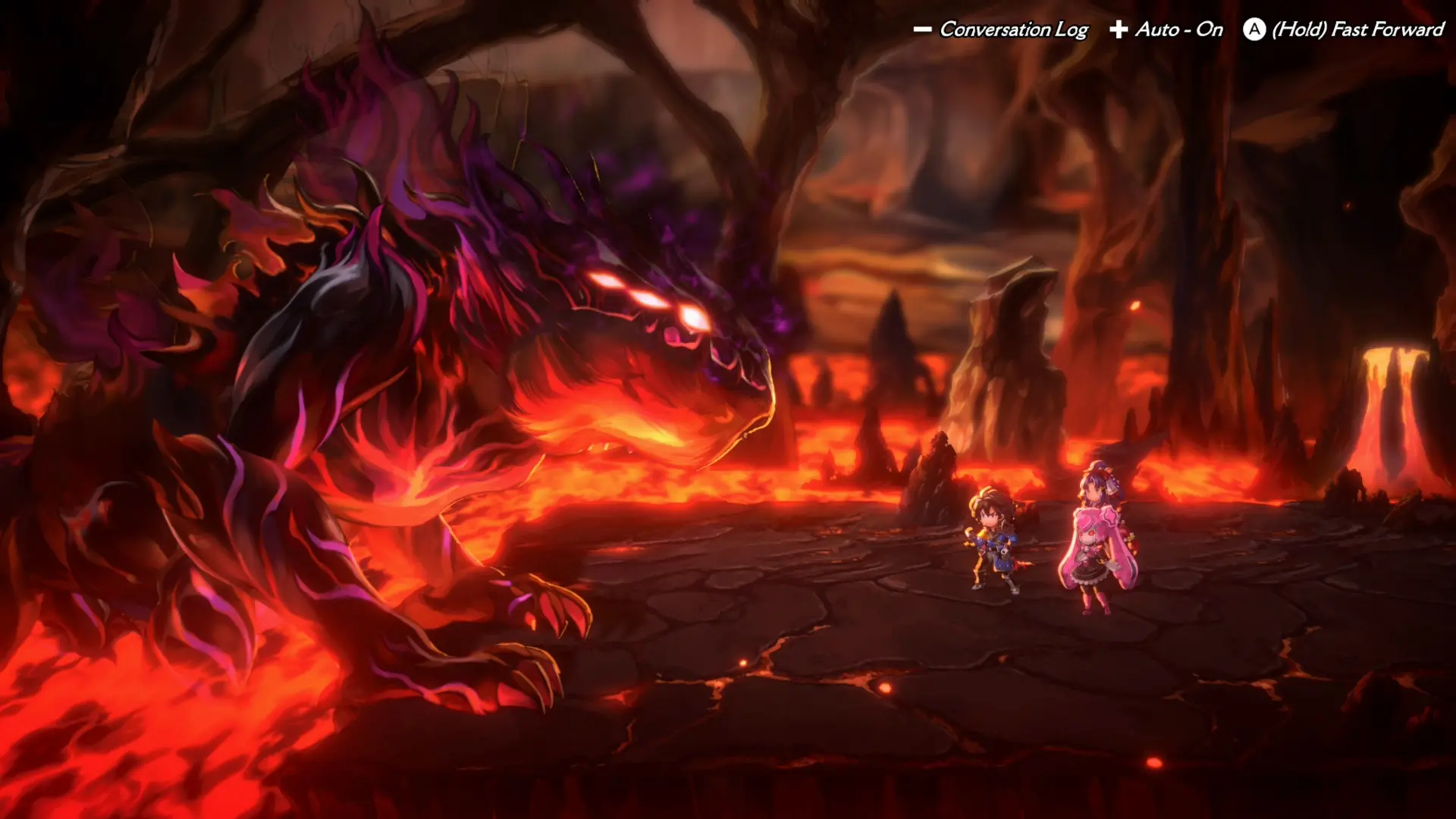
You can play through the first six chapters of the main story.
-
Carry over your progress to the full version!
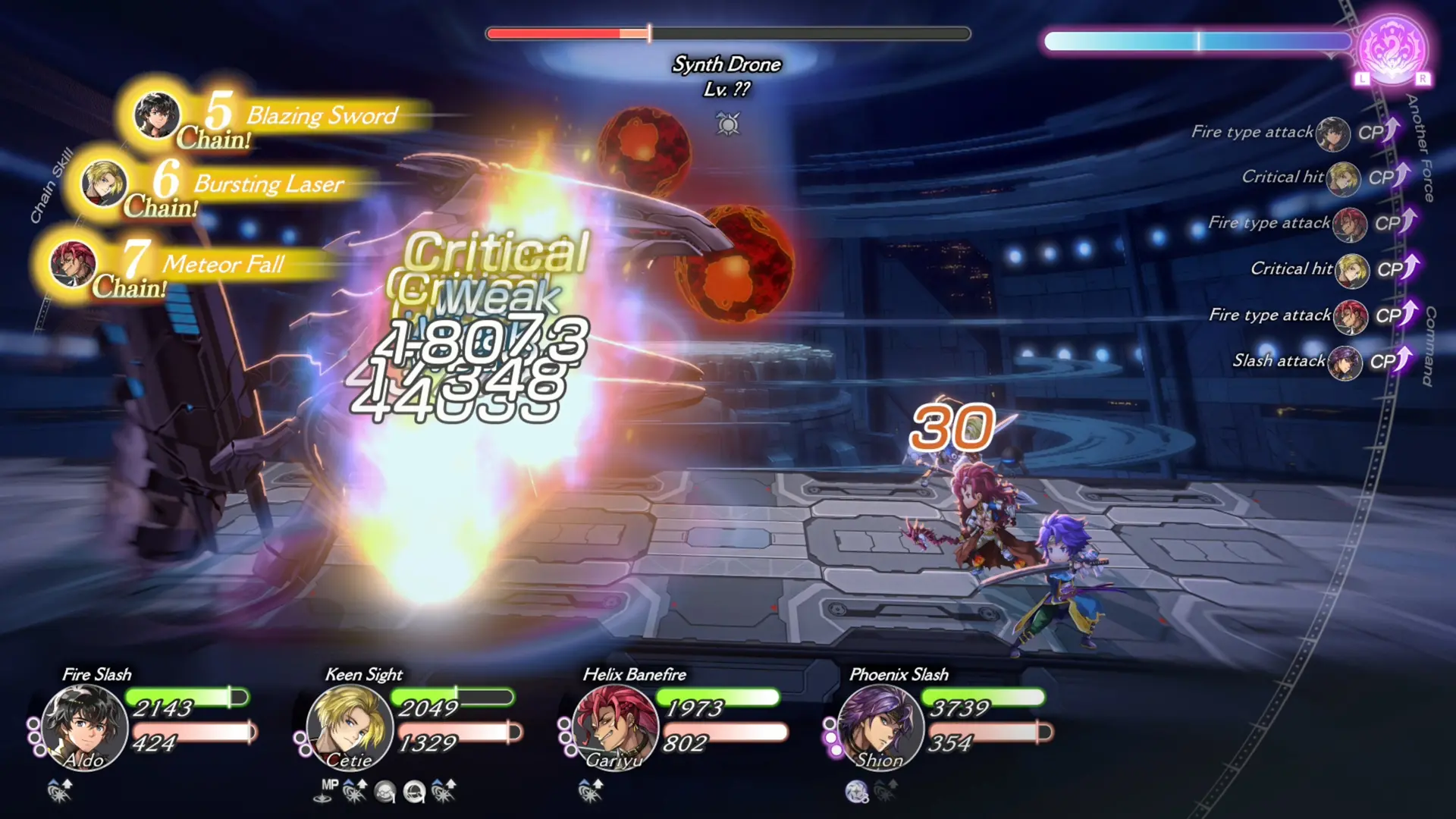
Story progress and character stats from save data created in this demo can be transferred to the full version of the game.
Transferring Save Data
Nintendo Switch™
To transfer your save data from the demo, launch the full version of the game with no existing save data. When prompted to transfer your save data, confirm the prompt.
Please make sure not to interrupt the save data transfer.
Note:
Save data created in the demo can also be transferred to Nintendo Switch 2 Edition.
Steam®
You will need to transfer your demo save data manually.
Please
follow the steps below.
1. To prevent Steam Cloud syncing, select the game in the Steam launcher library, click on the cog in the upper right, and select Properties.
2. In the General tab, turn off "Keep
game's saves in the Steam Cloud for Another Eden Begins."
If you have already launched Another Eden
Begins on Steam, proceed to step 3. If not, proceed to step 4.
3. Paste the following link into the Explorer address bar, press Enter, and delete "SaveData" if it exists.
%UserProfile%\AppData\LocalLow\WRIGHT FLYER STUDIOS\AnotherEdenBegins"
4. Paste the following link into the Explorer address bar, press Enter, and copy "SaveDataDemo."
%UserProfile%\AppData\LocalLow\WRIGHT FLYER STUDIOS\AnotherEdenBeginsDemo"
5. Paste the following link into the Explorer address bar, press Enter (or press the back button in your Explorer window to return to the "AnotherEdenBegins" folder from Step 3), and open the AnotherEdenBegins folder.
%UserProfile%\AppData\LocalLow\WRIGHT FLYER STUDIOS\AnotherEdenBegins
Paste "SaveDataDemo" from Step 4 into the folder.
6. Rename the SaveDataDemo folder "SaveData."
Note: The AppData folder is usually hidden. Instead of opening each folder one at a time, please paste the links above into the Explorer address bar.
7. Launch the full game.
Once save
data has been successfully transferred, enable Steam Cloud as needed.
Steam® Deck
You will need to transfer your demo save data manually.
Please
follow the steps below.
1. Press the STEAM button, select Settings, and scroll down to the Cloud tab. Turn off "Enable Steam Cloud."
2. Return to the home screen, press the STEAM button, and go to Power. Select "Switch to Desktop."
3. Select the file manager (default:
Dolphin) to go directly to the compatdata folder.
If you are not directed to the compatdata folder,
click the ≡ icon and select "Show Hidden Files."
4. Go to Home > .local > share
> Steam > steamapps > compatdata.
If you have already launched Another Eden Begins on the
Steam Deck, proceed to step 5. If not, proceed to step 7.
5. Go to 4163960 > pfx > drive_c > users > steamuser > AppData > LocalLow > WRIGHT FLYER STUDIOS > AnotherEdenBegins.
6. Select "SaveData," press L2 or right click, and select "Move to Trash" to delete the folder.
7. Click the ≡ icon on the upper right of the file manager, and select "New Tab."
8. Go to 4391790 > pfx > drive_c > users > steamuser > AppData > LocalLow > WRIGHT FLYER STUDIOS > AnotherEdenBeginsDemo.
9. Select "SaveDataDemo," press L2 or right click, and select "Copy."
10. Return to the AnotherEdenBegins folder in the file manager window.
11. In an empty space, press L2 or right click to paste the folder, check "Apply to All," and select "Write Into" or "Overwrite."
12. Press L2 or right click on "SaveDataDemo," and select "Rename."
13. Press the STEAM button and the X button to open the on-screen keyboard, and rename the folder "SaveData."
14. Press the B button to close the keyboard.
15. Close the file manager window, and select "Return to Gaming Mode."
16. Launch the full game.
Once
save data has been successfully transferred, enable Steam Cloud as needed.